Some events don't have one focal point, they have several. More than one mat, more than one court, more than one thing worth watching at once. A single camera can't cover all of it, and hiring someone to cut between angles live defeats the purpose of doing this yourself.
There's a simpler way: put up more than one camera, and let the viewer pick which one they're watching.
Why this setup is the right one for this kind of event
The moment an event has more than one point of interest, a single camera makes someone choose what everyone else gets to see. If two things are happening at once, whoever's holding the camera decides which one matters, and everyone watching loses the other.
The usual fix is a producer, someone dedicated to watching everything and cutting to the right angle in real time. That's a real job, and it's the reason most people assume multi-angle streaming means hiring a crew.
It doesn't have to. If each viewer can switch angles themselves, whenever they want, nobody has to make that call for them. The scoreboard, the second mat, the wider room shot, all available, all the time, with no one deciding on the audience's behalf.
This is also the natural next step if you've already run a single-camera event and want more coverage, not a different product, just an additional camera added to the same simple setup.
What this event shape looks like
You're a fit for this setup if your event has:
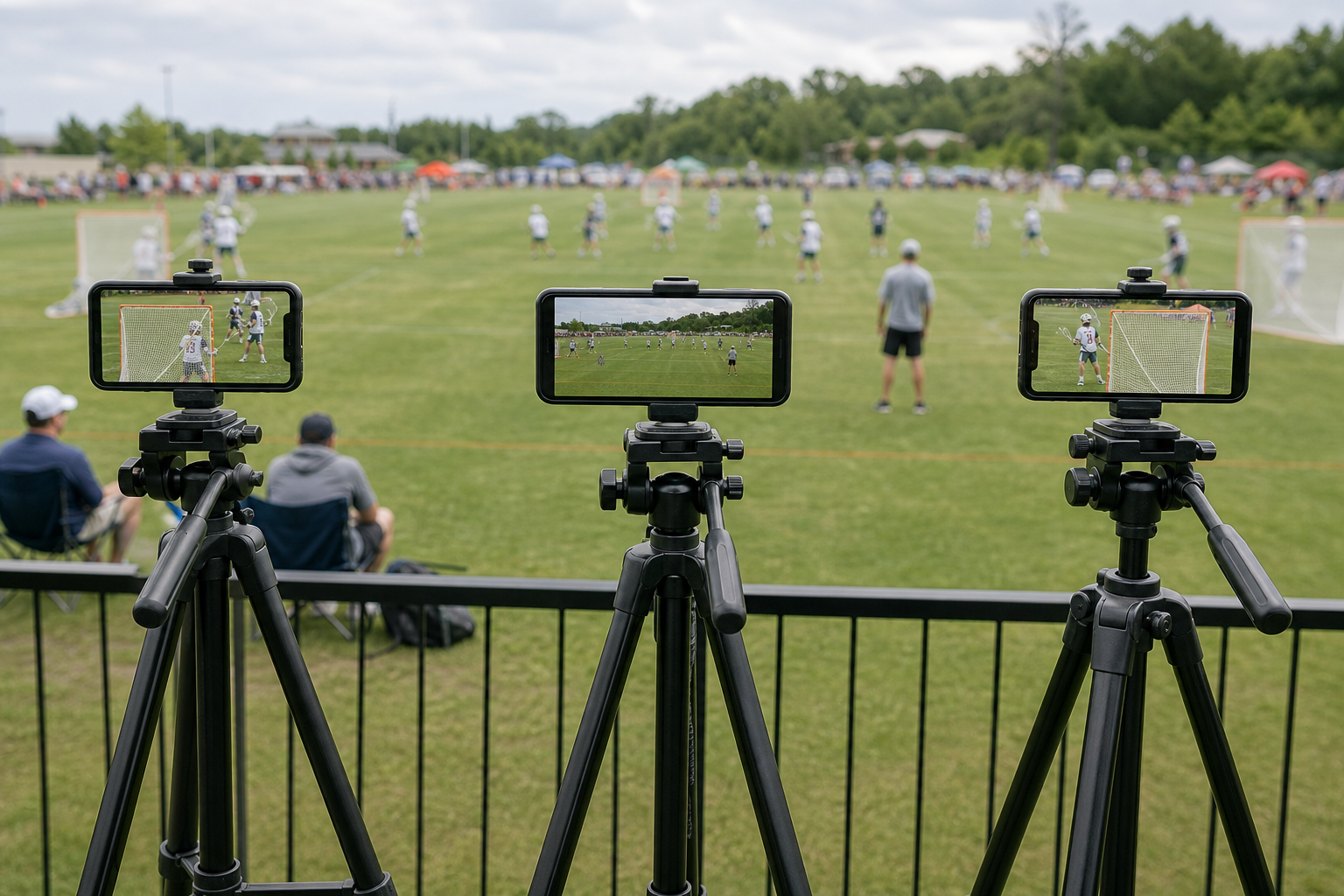
- More than one thing happening at once, in a way viewers might want to check independently — multiple mats, courts, or stations running in parallel.
- A single main event with a second angle worth having — a wider room shot alongside a close view of the speaker, or a scoreboard alongside the main action.
- A supplementary asset to show alongside the live picture — a slideshow, a slide deck, a scripture passage, something that isn't a camera feed but still needs to appear on stream.
Multi-mat wrestling and multi-court pickleball fit the first shape. Worship, funeral, and wedding events wanting a second room angle fit the second. Anything needing a slideshow or screen-share segment fits the third, and can be combined with either.
Setting up multiple independent stations
Use this if your event has several separate areas running at the same time, each with its own audio, like different mats, courts, or stations.
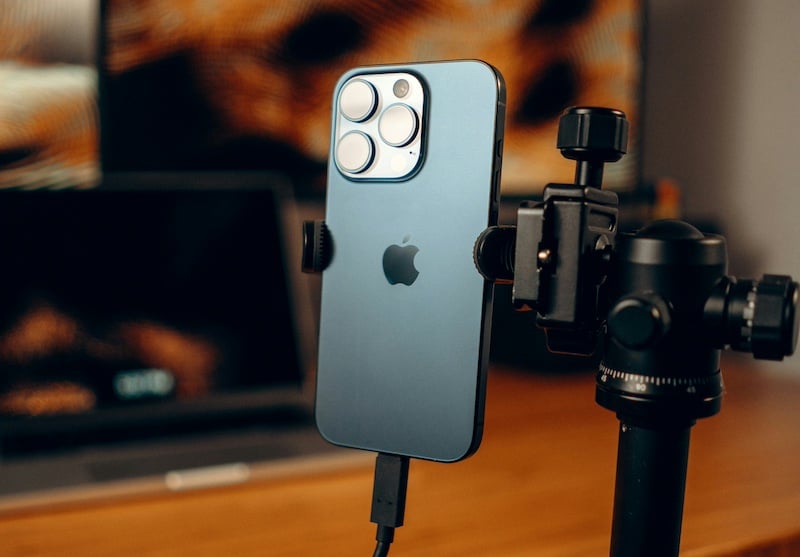
- Set up each camera the same way you would a single-camera event. One phone per station, each on its own stand, positioned so that station's action is clearly in frame.
- Each camera carries its own audio. There's no shared or primary mic here, whatever a camera picks up is what viewers hear when they're watching that angle.
- Rehearse all cameras together before the event starts. Confirm each angle looks right and each one's audio is clear on its own.
- During the event, viewers choose their own angle. You don't need to switch between cameras yourself, that choice belongs to whoever's watching.
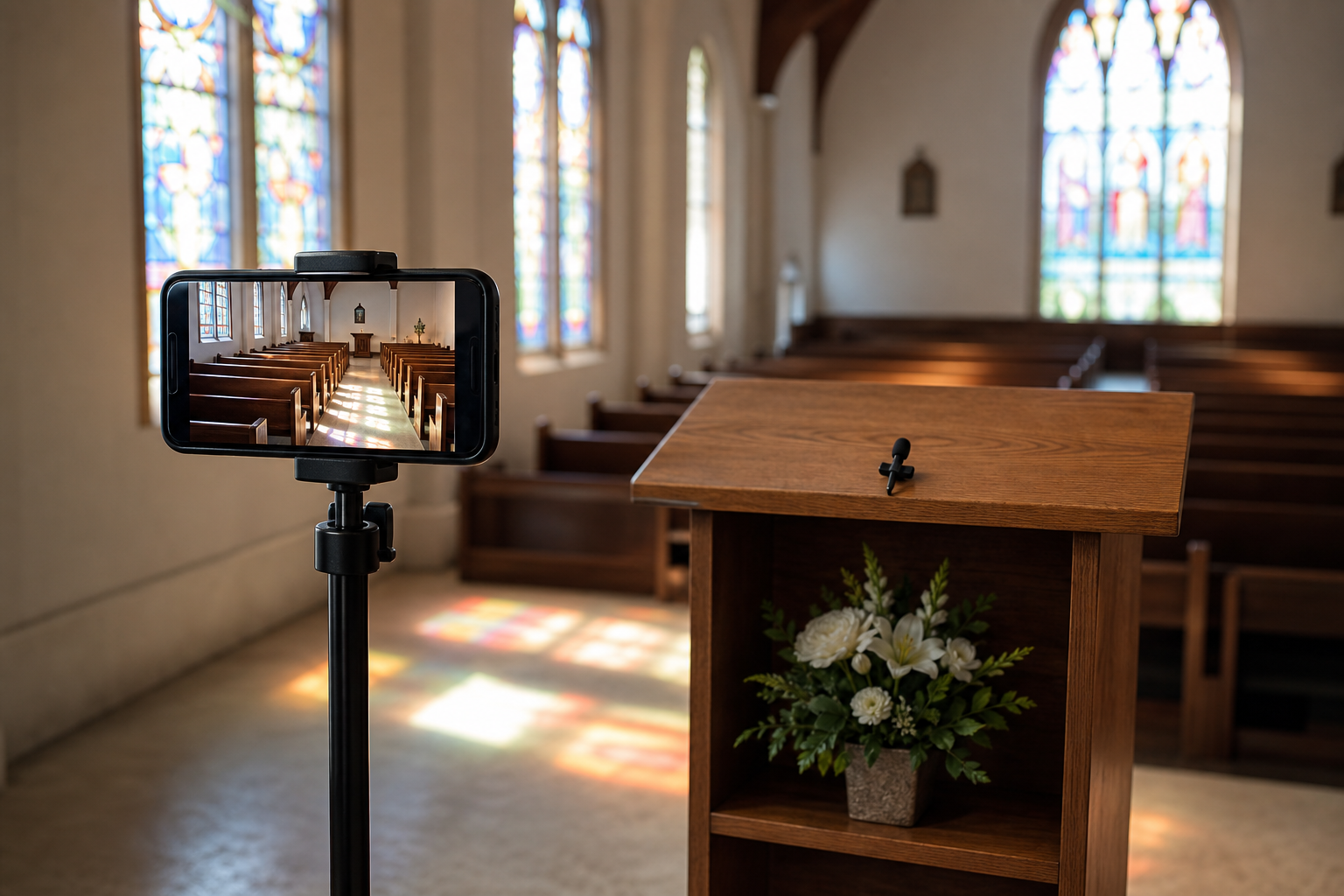
Adding a second angle to a single-speaker event
Use this if your event has one main speaker or focal point, and you want to add a wider room shot or second angle alongside it, while keeping the same clear audio on both.
- Set up your second phone the same way as the first, on its own stand, pointed at the wider shot or alternate angle.
- Choose the audio to lock and that audio stays with your primary camera regardless of which angle a viewer is watching.
- Rehearse both cameras together before the event, confirming both angles look right and the audio still sounds correct when switching between them.
- During the event, viewers choose their own angle, the same as the independent-station setup above.
Adding a slideshow or screen-share asset
Use this if you want to show a slideshow, slide deck, or other screen content as part of the event, before it begins, during a dedicated moment, or after.
This requires a laptop or computer, not a phone, since the content runs as a screen share.
- Prepare your content in whatever program you'd normally use, with any music or narration built into it.
- Set your computer as a camera source and choose to share the browser tab or window running your content.
- Share the tab's audio as well as the picture, so any built-in sound plays through the stream, not just the visuals.
- Decide when it plays. Common options: running before the event as people arrive, or as a dedicated segment during the event itself.
- Switch back to your camera view once the segment ends.
One thing worth understanding before your first screen-share segment: its own audio takes over while it's on screen, this happens automatically, separate from whatever audio setup you're using on your camera angles. In practice, this means you don't need to do anything special, just make sure any narration or music is built into the file or tab itself, since that's what viewers will hear the moment you switch to it.
Day-of checklist
- All phones charged to 100% or plugged in
- Every stand positioned and tested from its actual event-day location
- Signal checked from each camera position, not just one
- Private Rehearse run, including every camera and any screen-share segment
- Watch link sent to your audience in advance
Troubleshooting quick reference
One camera drops during the stream. The stream keeps going from any other active camera. Reconnect the dropped one by scanning its QR code again, about ten seconds.
Audio sounds distant or unclear on one angle. Check that camera's mic pairing first, this is almost always a placement issue.
A phone's screen locked or its browser tab lost focus. This is the most common cause of a dropped camera, not signal. Keep every phone's screen awake and browser tab open for the full event.
The screen-share segment's audio isn't what you expected. Remember it plays its own tab audio, not any camera's mic. If you want narration over slides, it needs to be built into the file or tab itself, not spoken live.
What it costs
Same pricing as a single-camera event: $19 for a single event. Additional cameras use additional phones you already have, no extra equipment required beyond what's listed above.
Frequently asked questions
Do I need a producer to run a multi-camera livestream? No. Once cameras are set up and rehearsed, viewers switch between angles themselves. No one needs to operate the stream during the event.
How does audio work across multiple cameras? For events with separate, independent stations (like multiple mats or courts), each camera carries its own audio. For single-speaker events adding a second angle, audio can be locked to one primary source, availability to be confirmed.
Can I add a slideshow or slide deck to my stream? Yes. This runs from a laptop or computer as a screen share, and can be shown before, during, or after the main event.
What kind of events need this setup instead of the basic one? Anything with more than one point of interest at once, multiple mats or courts, a second room angle, or a supplementary screen-share asset like a slideshow.
What if my event needs live scoring overlays, broadcast graphics, or a full production crew? That's outside what this setup covers.